




API & AI Connector Documentation
Rexultz exposes your data programmatically through the MCP connector — a single endpoint that any MCP-compatible AI tool (Claude, ChatGPT, Cursor, VS Code and more) can connect to. Ask about your feeds, sales, tracking, advertisers and SEO in plain language, or let an agent create a feed for you.
Connector endpoint
One URL for every client:
https://mcp.rexultz.com/What you'll need
- A Rexultz account with an active API key.
- An MCP-capable AI tool (typically a paid plan with the provider).
- The connector URL above.
Getting your API key
Find your key in the Rexultz dashboard under Account → API Key / License Key. Treat it like a password. You can reset it at any time from the same screen — resetting immediately revokes the old key.
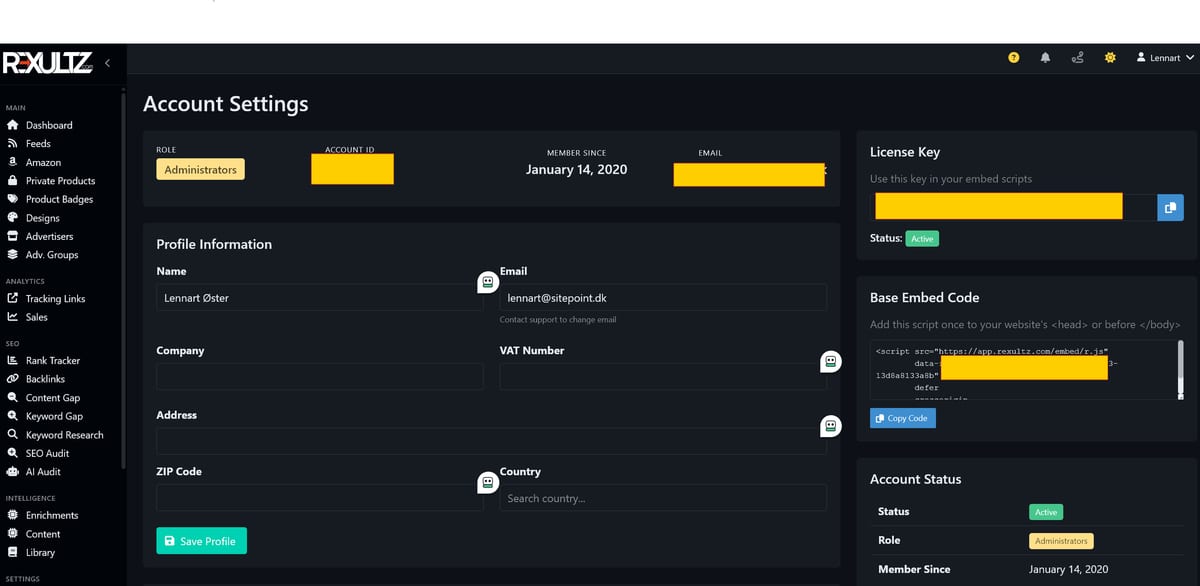
Authentication
Your agent supports one of two methods — both point at the same URL.
Method A — Login (OAuth)
Easiest, for browser clients such as Claude.ai:
- Open Settings → Connectors → Add custom connector.
- Paste
https://mcp.rexultz.com/and click Add → Connect. - A Rexultz login page opens — enter your account email and API key, then approve. The agent only asks once.
Method B — Headers
For desktop / CLI tools such as Claude Desktop, Claude Code and Cursor. Use transport HTTP and set two headers:
X-API-Key:    YOUR-API-KEY
X-User-Email: you@email.com
Example with Claude Code:
claude mcp add --transport http rexultz https://mcp.rexultz.com/ \
  --header "X-API-Key: YOUR-API-KEY" \
  --header "X-User-Email: you@email.com"
What you can do with it
Write to your agent like you'd talk to a colleague. Available tools are grouped by area:
📦 Feeds & Products
- List your feeds and spot ones with no products.
- Search products across your connected networks.
- Check a feed's status, product count and clicks.
- Create a feed — the agent shows the matched advertiser and product count, then creates it once you confirm.
💰 Sales, Revenue & Orders
- Show latest sales and earnings over a period.
- Break revenue down by website, page or network.
- See where conversions come from.
🔗 Tracking & Advertisers
- List tracking links ranked by clicks.
- See which advertisers you're approved for and their EPC.
- Check which sites have GA4 / Search Console connected.
📈 SEO & deeper analyses
- Ask how a page ranks, or for keyword-gap opportunities.
- Get page-level optimisation suggestions built on your own Search Console & GA4 data.
- Run AI affiliate audits, keyword research and technical SEO audits (these draw credits — see below).
Credits
Most tools are free lookups in your own data. A few use your Rexultz credits — exactly as they do inside the app:
- AI audits, keyword research and technical SEO audits draw credits (or use your own key if you run BYOK — Bring Your Own Key).
- Google Search Console and Google Analytics use your own Google connection and cost no credits.
Your agent tells you whenever a tool uses credits, and you can follow usage on the Billing page.
Security
- The connector only accesses your own account — never anyone else's data.
- Almost everything is read-only. The only action that changes anything is feed creation, which always asks for confirmation first.
- Access is tied to your API key, which you control under Account and can reset anytime.
Looking for a REST API?
The MCP connector is the supported way to access your Rexultz data programmatically today. If you have a use case that needs a traditional REST endpoint, tell us at support@rexultz.com — we'd like to hear it.
Related
- AI Connector overview — the full feature page with example prompts.
- Getting Started — set up your account and first feed.